How to Remove Speechify Chrome Extension (Quick Teacher Guide)
Are your tabs already out of control?
I know mine usually are…
25 open at any given time is pretty low for me.
Even with just our favorite tools can start adding up, right?
If Speechify is one more thing adding to your clutter, you can take it off in under a minute.
This guide walks you through how to remove Speechify Chrome extension, and how to add it back if you change your mind.
So that you can save your mental energy for what matters most.
(Ummm, teaching!)
TL;DR
TL;DR: To remove Speechify in Chrome, click the puzzle piece icon, find Speechify, click the three dots, then choose Remove from Chrome. To add it back, open the Chrome Web Store, search “Speechify,” and click Add to Chrome. Quick checks: icon gone = removed; icon back = reinstalled. Perfect for tidying your toolbar and keeping focus.
This article contains affiliate links. If you purchase through these links, I will earn a small commission at no extra cost to you. Thank you!
Getting Started with Chrome Extensions
Before you remove anything, open Chrome’s extension controls.
What the extensions menu looks like
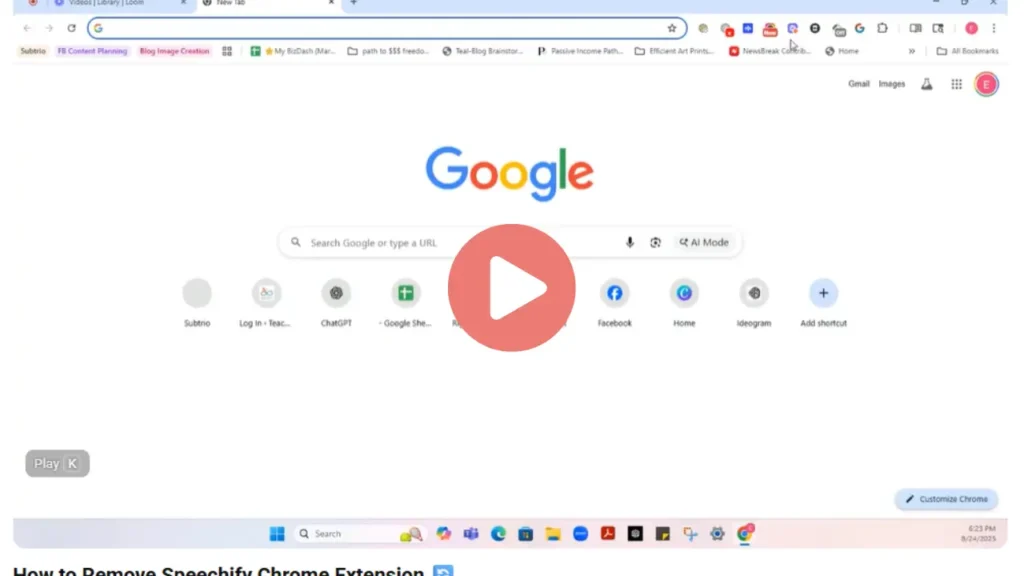
You’ll see a puzzle piece icon at the top of Chrome.
Highlight the puzzle icon so it is easy to spot.
Common places you’ll find it
Near the address bar
Next to your profile picture
On the right side of your toolbar
Why Access the Extensions Page First
Going to the extensions area first helps you see exactly what is active.
It also makes the next steps clear.
Following the video
Start by opening the extensions menu, just like in the video.
When you hear come up here, it means head to the top toolbar.
Why this helps
This quick trick keeps your browser organized.

Clicking on the Extensions Icon
Your first click is going to be on the puzzle piece.
The initial action
Open the extensions menu to see what is currently pinned or active.
Simple steps
Look for the puzzle piece icon in the upper right.
Click to open your extensions list.
Spotting the Three Dots Menu
Next, find Speechify in that list, then open its small menu.
Find the menu beside Speechify
You’ll see three vertical dots next to the extension.
Pointer language
You might hear down here to guide your eyes to the menu.
What the menu might include
Details
Remove from Chrome
Manage extension

Selecting the Remove Option
Now for the main move, removing Speechify.
The exact click
Open the three dots menu and choose the removal command.
Numbered step
- Click remove from Chrome.
- Select remove from Chrome to confirm.
What Happens After Removal
Once you remove it, Speechify disappears from your extensions list.
Immediate result
That is it, your browser no longer runs Speechify.
All right, that is how it works from start to finish.
Signs it is gone
The Speechify icon is no longer visible
No more Speechify controls on web pages
It no longer appears in the extensions list
Considering Reinstallation Needs
Changed your mind later, or want to try a different setup?
You can add it back fast.
When this comes in handy
If you are testing tools, tidying your toolbar, or sharing a device, reinstalling can be helpful.
Common reasons
You prefer it only during heavy professional development season
You want to compare it with another tool
You removed it by accident

Returning to the Chrome Web Store
If you want it back, you will head to the store.
Where to go
Open a new tab, then go to the Chrome Web Store.
Guide language
Follow the cue to go back to the Chrome web store and open the Speechify page.
Helpful next step
If you need setup tips, try the walkthrough in Installing the Speechify Chrome Extension for Teachers.
Searching for Speechify
You will use the store’s search bar.
How to search
Type Speechify in the search box, then open the extension page.
Numbered step
- Type Speechify and press Enter.
Match the phrasing
Use the store’s bar to search for Speechify.
Checking the Button Text
This is where you can confirm whether Speechify is installed or not.
What to look for
After removal, the button changes from remove to add.
You will notice it doesn't say remove from Chrome anymore.
Quick compare
Installed: Remove from Chrome
Not installed: Add to Chrome
Clicking Add to Chrome
Ready to reinstall, or trying it for the first time?
The restore action
Open the Speechify listing and add it back to your browser.
Numbered step
- Click add to Chrome, then confirm any prompt.
Highlight the option
Tap add to Chrome to finish.

Verifying the Reinstall
You can confirm it worked in a few seconds.
What you will see
Speechify reappears in your extensions and becomes available in the toolbar.
Echoing the guide
It is quick, so you would do that there and get back to work.
Quick checks
The Speechify icon returns
You can pin it to the toolbar
Its controls show up on supported pages
Common User Tips for Extensions
Keep the steps short and repeatable.
Your future self will thank you!
Goodness knows, you don't need more things to remember.
Having a short, repeatable “standard operating procedure” (SOP) of sorts can really help.
Make it easy on your brain
Pin only what you use daily
Use the three dots for simple removal
Reinstall from the store when needed
Troubleshooting Button Visibility
Not seeing the expected button on the store page?
What to confirm
Check if you are signed in and in Chrome.
Watch the language
Sometimes it looks different, but it would say add to Chrome when it is not installed.
What to check
You are using Chrome, not another browser
You are logged into your Google account
You are viewing the extension’s official page

Final Thoughts
You can turn Speechify off or back on with just a couple clicks.
Keep it simple, follow the same steps, and you are done.
I hope this helps to save you a few minutes in your day.
Why this matters
Less clutter, more focus
Reversible change
Control over what runs in your browser
Who Might Need This Guide
This is handy if you test tools often or share devices at school.
Check out the video and follow along on your device!
Quick Recap of Steps
Here is the fast version for your next cleanup session.
Removal and add-back
- Click the puzzle piece icon.
- Find Speechify, open the three dots.
- Select Remove from Chrome.
- To reinstall, open the Chrome Web Store.
- Search Speechify.
- Click Add to Chrome.
You are in charge of your tools.
Keep what helps, drop what distracts, and get back to your day.
To learn more about all the cool things you can do with Speechify as a neurodivergent teacher?
Read What Can Speechify Do?
Use my link to start your free trial today!
Join the Community
Do you personally have ADHD/autism and want to connect with other like-minded educators?
We share ideas, ask for help, vent, and generally support each other.
Visit our Facebook group and take it one step at a time. Please answer the quick questions and have a clear photo. That helps keep the community safe. Thank you.
You've got this! ❤️
Found Something Helpful? I'd Be So Grateful If You'd Pin One of These Images!
It truly helps my blog reach more teachers like you. Thank you so much!