How to Install and Use the Speechify Chrome Extension for Effective Reading
You know that feeling when you're staring at a long email from your principal…
And your brain is already three thoughts ahead before you've even finished the first paragraph?
Same, friend. Same.
And, if you're a teacher with ADHD or autism?
You probably already know how quickly reading can turn into an overwhelming mess of words that refuse to stick in your brain.
That's why I want you to know how to install and use Speechify Chrome extension.
TL;DR
Speechify is a Chrome extension and text-to-speech tool that reads web pages, PDFs, and articles aloud, making it perfect for neurodivergent teachers and other adults who struggle with reading focus or need to multitask.
Install it from the Chrome Web Store, choose from 200+ voices and adjustable speech speeds, and listen to teaching resources, emails, or professional development materials while doing other tasks.
The free trial lets you test basic features, while premium offers advanced voice options and speed controls that help ADHD and autistic educators process information more effectively without screen fatigue.
Speechify is a screen reader and text-to-speech tool that has honestly been super useful for me.
It reads web pages and PDFs out loud, so you can absorb information while completing other mundane tasks.
(Think, driving to work. Or, loading the dishwasher for the 100th time that day.)

This article contains affiliate links. If you purchase through these links, I will earn a small commission at no extra cost to you. Thank you!
Getting Started: Accessing the Chrome Web Store
I'm going to walk you through this step by step because I know how frustrating it can be when tech tutorials assume you already know things.
And if you do know this, go to the next paragraph.
Start in the Chrome Web Store on your desktop browser.
Sure, Speechify works on iPad and iPhone too, but I find desktop easier for the initial setup.
Don't worry, I'll cover mobile later for when you want to listen to those endless professional development articles during your commute.
How to Install and Use Speechify Chrome Extension
Here's what you'll do:
Go to the search bar that says “Search extensions and themes.”
Type “Speechify.”
Look for the blue box with a white audio wave.
Or you can visit my link to get started with your free trial even quicker.
Installing Without the Drama
If you don't have it yet, you'll see an “Add to Chrome” button.
Click it.
If you're like me and already have seventeen extensions cluttering your browser?
Check if the Speechify icon is already hanging out in your Extensions menu.
Pro tip: Click that little pin icon to keep it in your toolbar permanently.
Trust me, you'll use it more than you think.
Using Speechify on Web Pages
Once it's installed, pick a website you need to read.
I tested this on Edutopia because, let's face it, they've got some good stuff.
Speechify works on almost any site, even when your school's internet is being temperamental.
You'll see a timer showing how long it'll take to read the whole page.
Even though I'm no longer teaching in the classroom, I definitely still have my fair share of parental paperwork to digest.
Sometimes I look at that number and think, “Wow, no wonder I never finish reading these things.”
For faster loading, close some of those other tabs you've been meaning to read for three weeks.
Or refresh the page if it seems stuck.
If all else fails, copy the link, close the tab, and start over.
It's the digital equivalent of turning it off and on again.
The Controls That Actually Make Sense
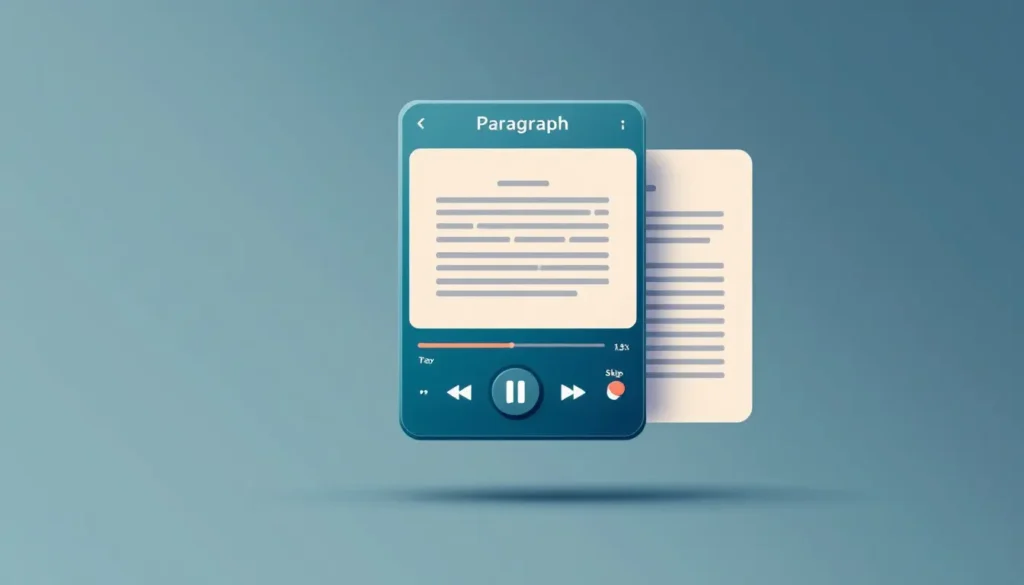
The controls are refreshingly simple.
Play button to start, same button to pause.
Exhale. Not too bad, right!?
With the premium version, you can control speed way better than the free one.
This matters when your brain needs things either lightning-fast or turtle-slow depending on the day.
There's a bookmark feature to save articles to your library.
I use this for all those “I'll read this later” moments that usually turn into “I'll never read this.”
But it's still a cool feature.
You can skip ahead or jump back using the double arrows, or scroll down and click the play button that appears next to different sections.
This is perfect for when you need to re-listen to that one important part you zoned out during.
Picking Your Voice (The Fun Part)
This might be my favorite feature.
With premium, you get over 200 voices to choose from!
How is that possible?! Love this.
Celebrity voices, different accents, whatever keeps your brain engaged.
I've definitely picked voices based purely on what matches my mood that day.
Need some energy? Maybe a more upbeat voice.
You can also change the language entirely.
Winning.
Speed Settings That Work for Real Life
You can adjust how fast Speechify reads to you.
The speed slider is your friend here.
At 1.3x speed, you're getting about 250 words per minute, so those massive articles actually become manageable.
Some days I slow it way down if it's something dense or technical.
Other days, I speed it up because I have five minutes before the end of my lunch break.
Find what works for your brain on any given day.
Mobile Version for Life on the Go
Speechify works on iPad and iPhone too.
This is handy when you're trying to catch up on professional development during car pickup or while your kids are destroying the living room.
I've definitely listened to teaching articles while packing snacks because my evening brain is too fried for actual reading.
Real Teaching Applications
This tool has saved my sanity in so many ways:
Listen to those novels before teaching them (because who has time to reread every book every year?).
Get through parent emails while taking out the trash.
Absorb professional development articles during your walk to the parking lot.
Process lesson plan resources while brainstorming lesson plans.
The multitasking possibilities are endless, and for those of us whose brains need constant input, it's perfect.
Free Trial Reality Check
There's a free trial available, which I always recommend because spending money on tools that don't work for your brain is the worst.
Try it out, see if it fits your lifestyle, then decide if it's worth the premium features.
I'm pretty particular about which tools actually earn space in my routine, and this one made the cut.
You can learn more and try it out, here.
When Things Go Wrong (Because They Will)
Sometimes pages load slowly or Speechify needs a minute to process.
When that happens:
Refresh the page.
Check your internet (especially if you're at school).
Make sure the extension is actually turned on.
Most issues resolve themselves quickly, so don't panic.
We have enough things to stress about without adding tech troubles to the list.
Making It Work for Your Neurodivergent Brain
The real magic happens when you figure out how Speechify fits into your existing systems.
Try keyboard shortcuts for play and pause.
Set up a regular listening routine.
Experiment with different voices and speeds based on your energy level.
Pair it with other ADHD management tools you already use.
The goal is making your workday smoother, not adding another thing to manage.

The Bottom Line
Speechify offers adjustable speed, tons of voice options, and simple controls that actually work.
For neurodivergent teachers, it's genuine accessibility support that helps reduce overwhelm.
Listening instead of reading has honestly made me feel less exhausted at the end of the day.
Try the free trial and see if it helps your brain work with you instead of against you.
You deserve tools that make teaching easier, not harder.
Join the Community
Do you personally have ADHD/autism and want to connect with other like-minded educators?
We share ideas, ask for help, vent, and generally support each other.
Visit our Facebook group and take it one step at a time. Please answer the quick questions and have a clear photo. That helps keep the community safe. Thank you.
You've got this! ❤️
Found Something Helpful? I'd Be So Grateful If You'd Pin One of These Images!
It truly helps my blog reach more teachers like you. Thank you so much!